
3 · Your first project#
A project groups the characters of one production. On disk it is a folder you
choose, marked by a single .dcsp file — keep it wherever you keep that
production's files and back it up with them.
Create it#
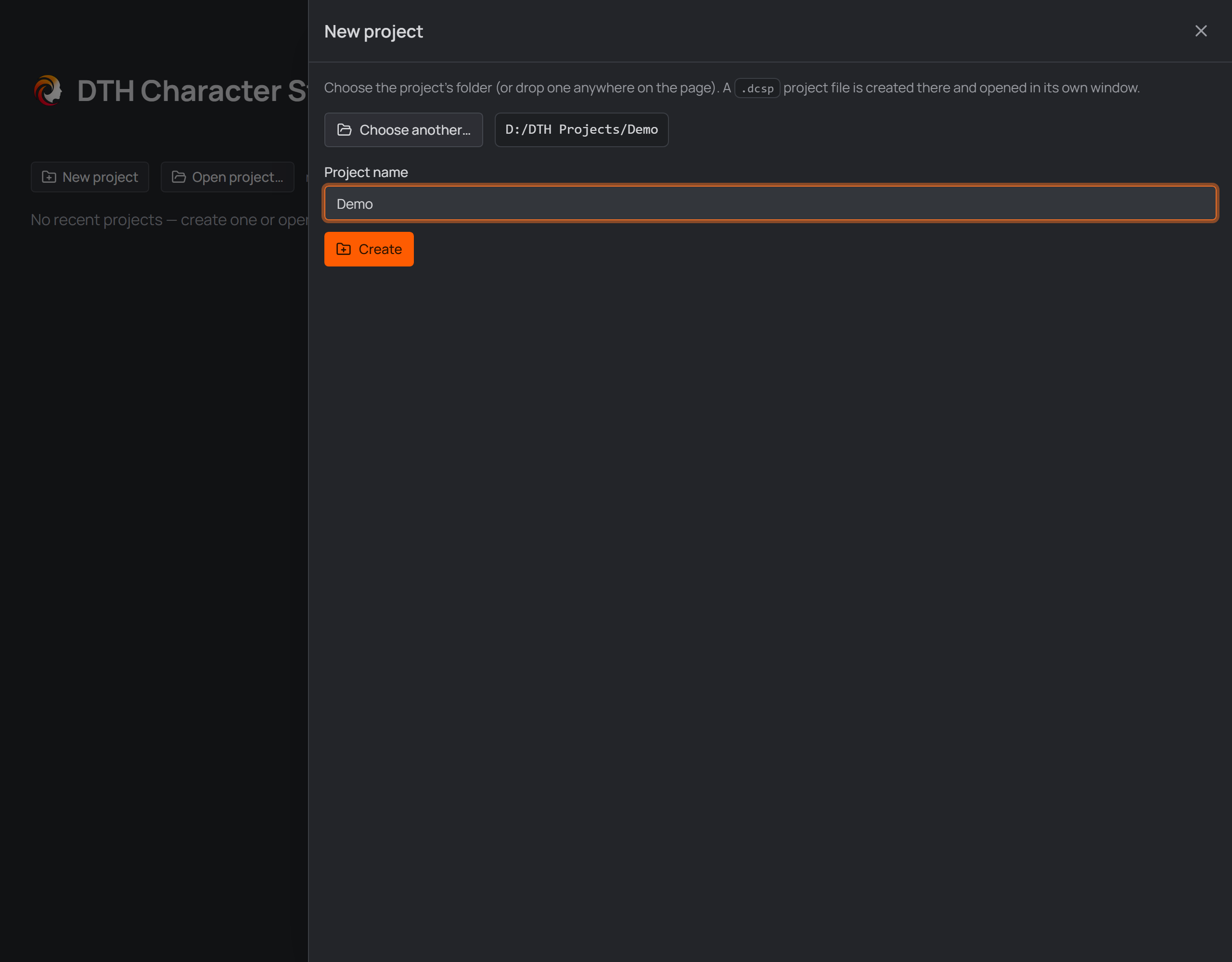
The New project panel on the Home screen.
- On the Home screen press New project.
- Choose folder… — pick the folder the project should live in (or drop a folder anywhere onto the Home screen).
- Give it a Project name and press Create.
The project opens in its own window. From now on you can also open it by
double-clicking the .dcsp in Explorer, or from the Home screen's recent list.
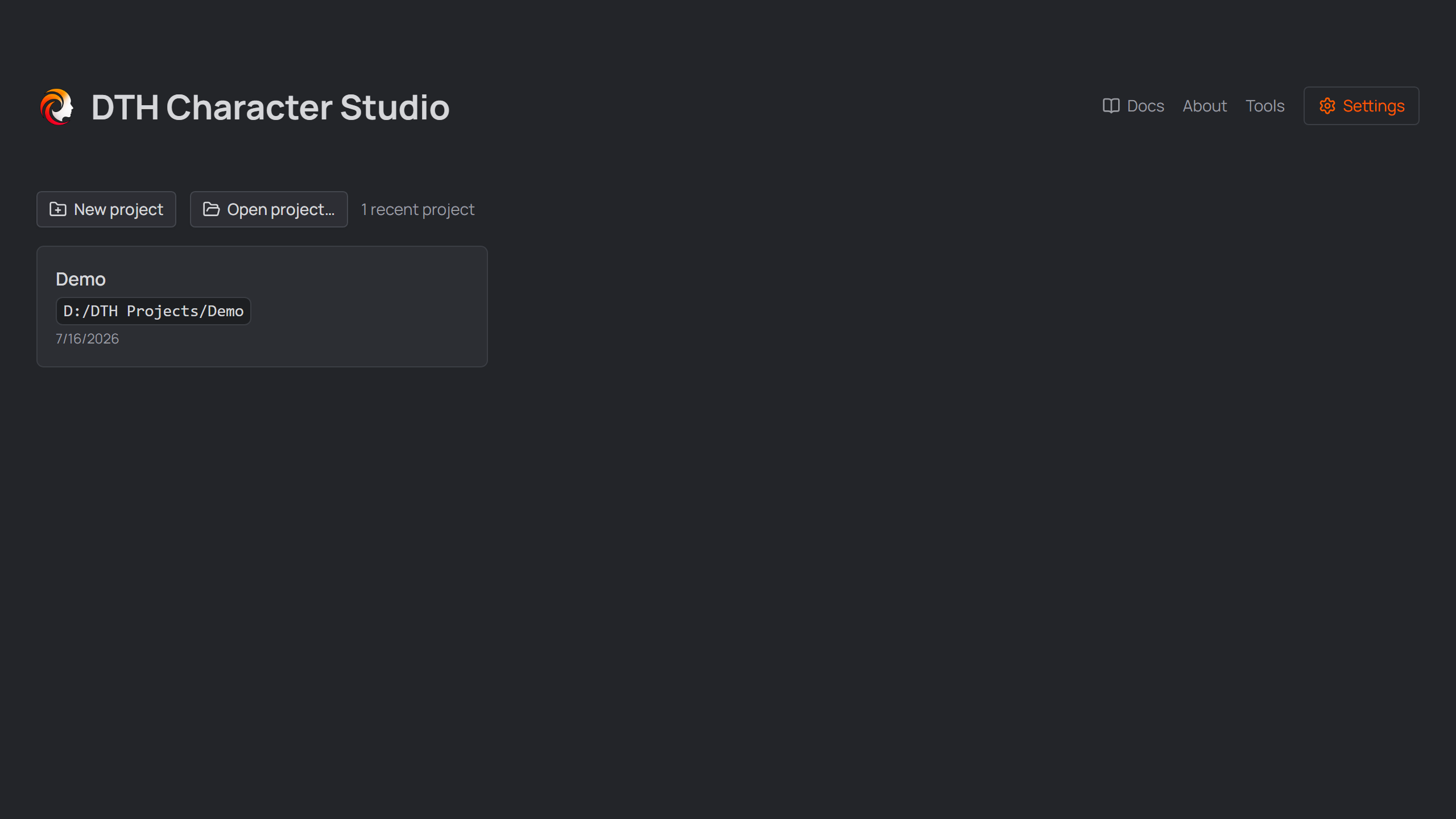
The Home screen — recently opened projects reopen with one click.
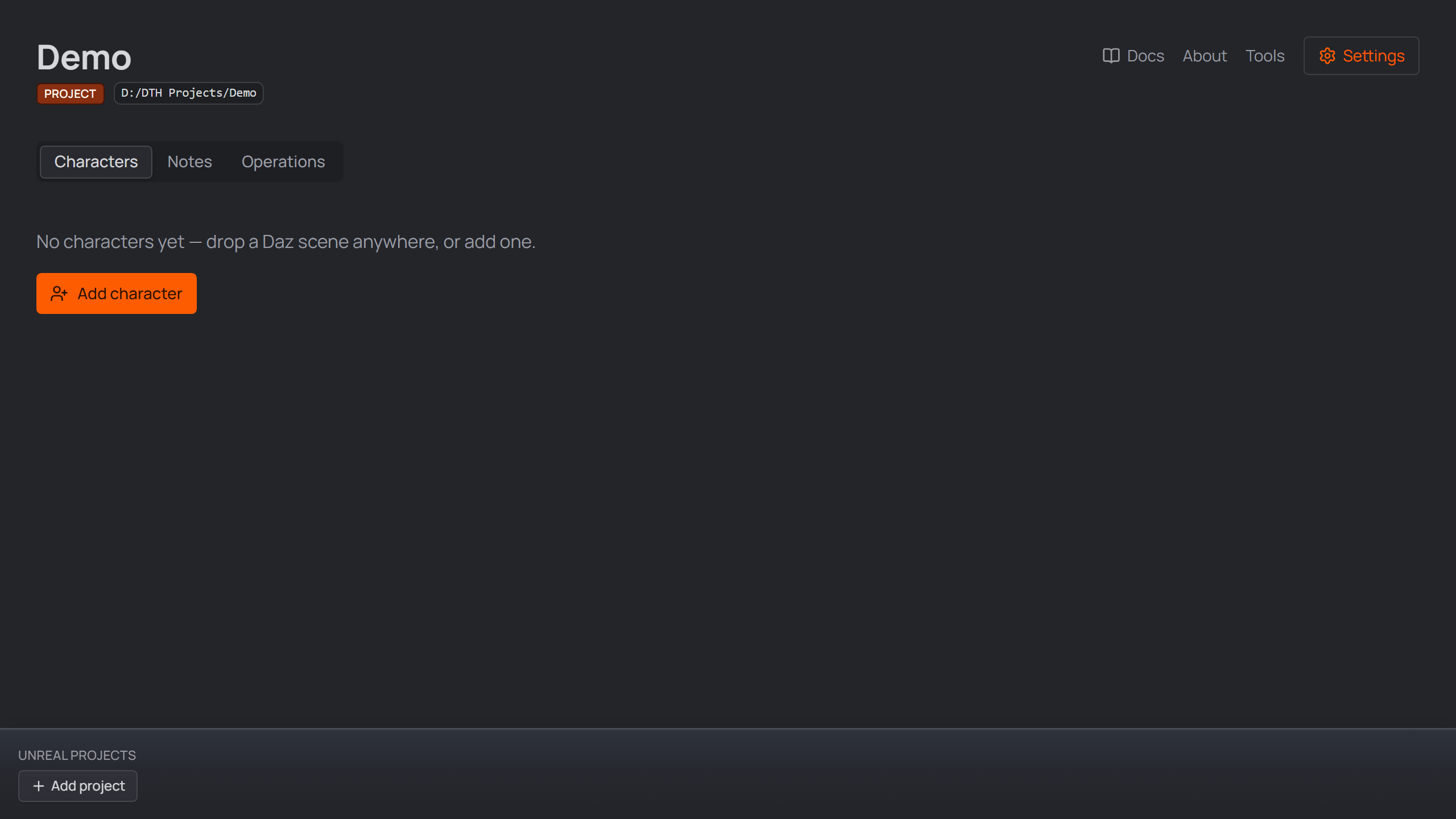
The project opens in its own window.
Good to know#
Every character becomes a subfolder of the project — definition, scenes and generated files live together, so the project folder is self-contained.
Beside Characters the project page has Notes (freeform markdown) and Operations (the project-level danger zone). Enabling Assets adds an Attachments tab.
Per-project options live in Settings → Project; the defaults are fine for a first run. One is destructive: changing Characters subfolder later moves the existing character folders.
Path chips — the monospace path badges all over the app — copy the full path on click, and Alt+click opens the location in Explorer. A chip with a pencil edits the value in place. The same Alt+click works on every linked card.
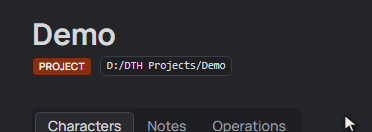
Hover shows the copy badge; a click copies the full path.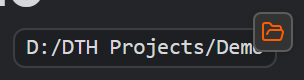
Holding Alt flips the badge to a folder — Alt+click opens the path's location in Explorer.
Linking Unreal projects#
The bar docked to the bottom of the project window holds the Unreal projects
this studio project feeds. Link .uproject files with the button or by dropping
them onto the bar — links only: the files stay where they are, and unlinking
never deletes anything.
The open button launches the project in Unreal Engine; Alt+click shows it in Explorer. The rest of the card is inert — no accidental launches.
The Utils button (🔧, the same one the Daz-scene and Houdini cards carry) opens the project's Utils drawer. Its Install tab lists what can go into the project, with whatever the project doesn't have yet already ticked — so the usual move on a freshly linked project is to press Install.
- the linked DTH release's Unreal Engine Content (into
Content/DazToHue); - the DTH Character Studio Runner, marked built in because it ships inside the app — the small Python plugin that makes Send to Unreal work. Restart the editor once after installing it;
- every plugin build from your Unreal Engine Plugins folders matching this project's engine version.
Anything already installed and current starts unticked — tick it to install it again, which overwrites it with the offered build (project-local additions inside the folders survive). Two things are never ticked for you even when missing: a build compiled against another engine build, and — on a project whose engine association is a source-build GUID — every plugin build, since only you know which one fits.
- the linked DTH release's Unreal Engine Content (into
An amber ⚠ on a card means that project still needs something: no DTH content in it yet, or a DTH Character Studio Runner older than the one this app ships (a send is then refused rather than attempted). Click the ⚠ — it opens the same Utils drawer, with the fix ticked.
Creating the Unreal project itself is Unreal's job — its New Project screen is where the templates live. Make it in Unreal, then link it here.

A linked Unreal project card in the footer bar.