
The Utils drawer#
Every Houdini project card carries a Utils button (🔧). Its drawer has a tab per job and works on that one project — for another, open its own Utils.
- Material, Skeleton, Occlusion and Groom occlusion — copy a node's complete setup from one project into another. This page.
- General reads this project instead of copying into it: Project checks and repairs.
Copy a texture-baker setup between projects#
Setting up a DazToHueMaterial node is the most tedious part of the workflow:
one skin material runs to four bakers of thirty layers, over slots merging fifteen
Daz surfaces into one Skin.
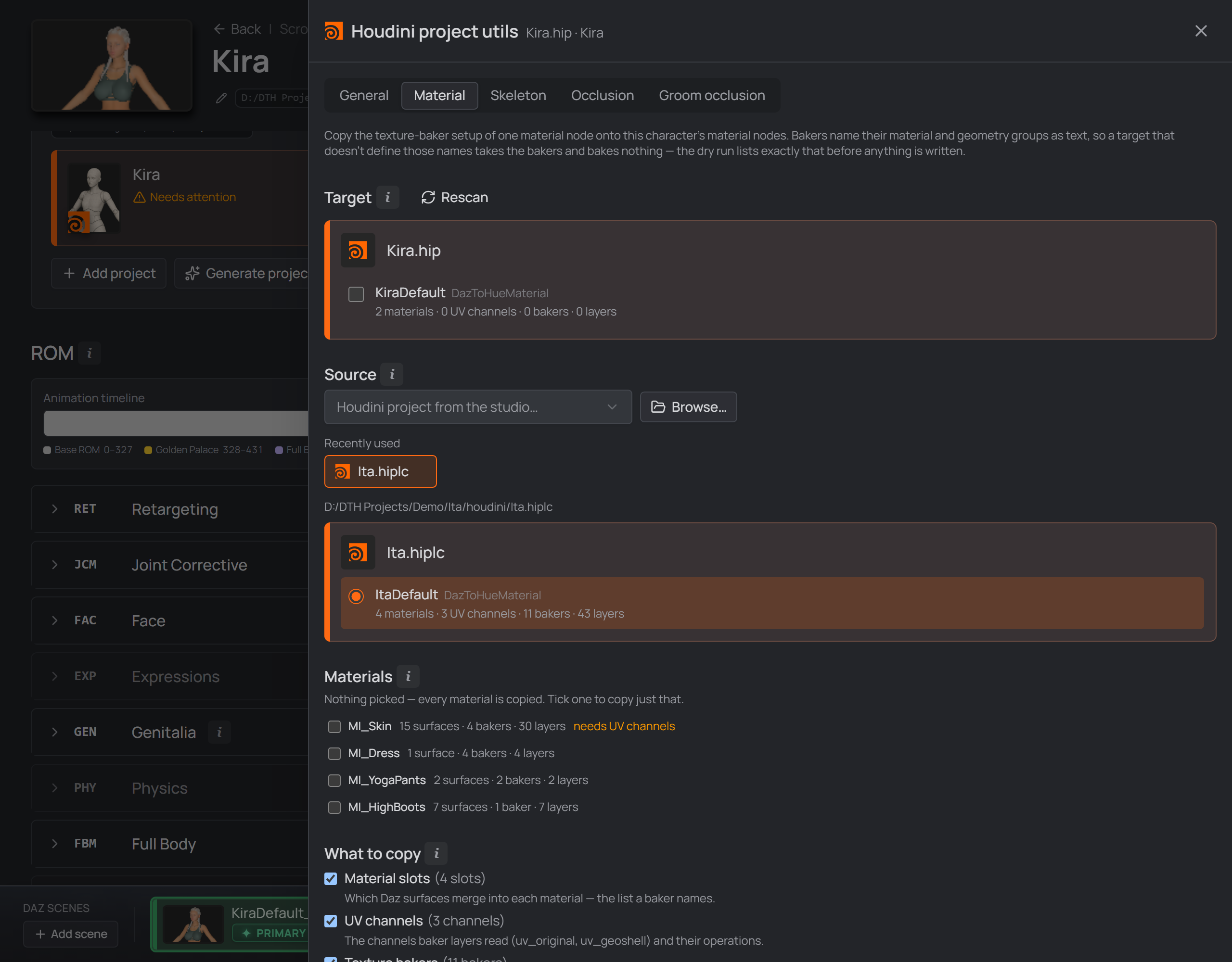
The Utils drawer: this project's nodes as targets, a browsed project as the source, and what travels.
Target — the DazToHue material nodes in this project. Tick the ones to receive the copy; nothing is ticked for you, because this writes to the project. Name your network boxes: several DTH networks all call their node
DazToHueMaterial,DazToHueMaterial1, … so the list shows each box's title (KiraDefault,KiraYoga) with the node name beside it.Source — the node to copy from: pick another character from the studio, or Browse… for any Houdini project on disk (dropping a
.hipon that button does the same). A project that keeps Houdini templates lists them here by name, and the last five sources come back as Recently used chips. Exactly one node can be the source.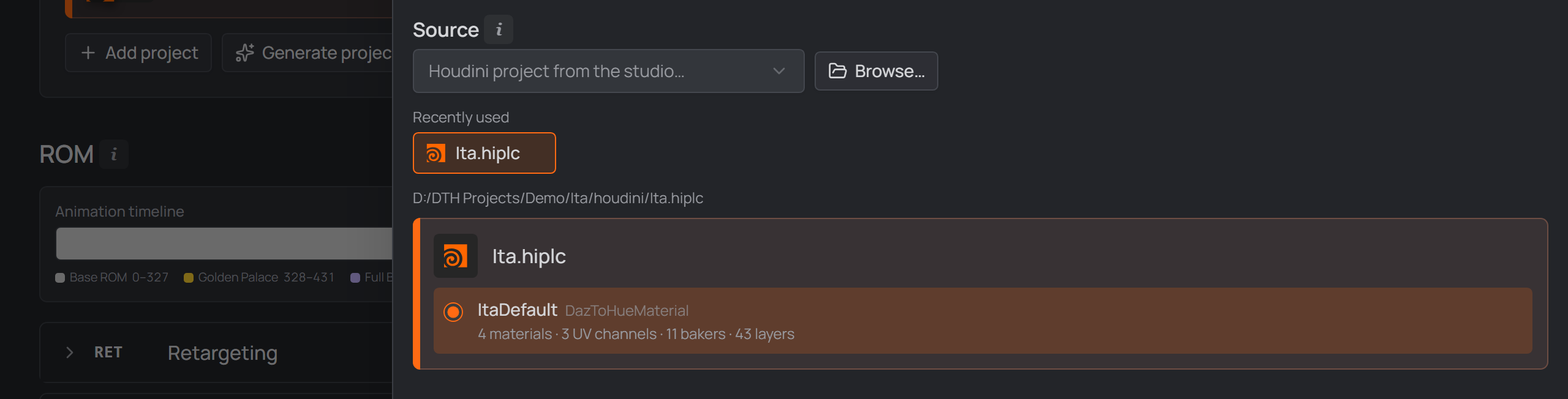
The source you just picked comes back as a chip under the picker — the second use is one click.Transfer asks for confirmation, then offers Dry run (changes nothing, reports exactly what a real run would do) and Run.
Replace UV channels and bakers is off by default — copies are added to what the target has; on, the target's are removed first. It never covers material slots, which always merge by surface.
Pick a material, not a node#
The thing you reuse is a material. The drawer lists the source node's slots with what each costs by hand. Tick one and only that material travels — its slot definition and the bakers naming it; tick nothing and everything is copied.

Each slot with what it costs by hand — and which one needs the UV channels.
A skin slot merges the same ~15 Daz surfaces on every character of a generation, so it transfers between any two Genesis 9 characters as-is. Clothing slots only match when the target wears the same asset.
What gets copied#
What to copy picks which parts travel, all on by default:
| what it is | |
|---|---|
| Material slots | which Daz surfaces merge into each material — the merge list is the tedious part |
| UV channels | the node's UV channels and their operations (all of them — channels are positional, not named) |
| Texture bakers | the bakers of the picked materials, and every layer |
Bakers reference everything by name. A baker copied into a node with no material called
MI_Skinimports fine and then bakes nothing. Untick Material slots and the report names exactly which materials are missing.
Do you need the UV channels? A material shows needs UV channels when its
bakers read a UV only a channel produces — skins read uv_geoshell, clothing only
the uv_original every DTH import already has.
It isn't only advice: untick UV channels while such a material is selected and Transfer is disabled, reason beside the checkbox — even against a target that already has matching channels, since channels carry no name to verify.
A parameter linked to another node arrives as its value. DTH node names are
identical in every project, so a copied ch("…/DazToHueMaterial/…") reference would
silently rebind to the target's node. Expressions naming no node travel as
written.
Material slots merge by surface#
A material slot is a claim on Daz surfaces, and a surface belongs to only one slot — so installing a slot removes exactly the slots claiming the same surfaces, no more. A target slot claiming a mix keeps the surfaces nothing else claims.
The confirm dialog lists what this replaces at each target before you run.
Same figure only — checked, not assumed#
A material setup only transfers within one Genesis version. The check is by surface: what your selected materials claim, against what the target has.
- Some unclaimed is normal (the source wears a dress this character doesn't) — you get a note and the transfer runs.
- None matching means the two nodes describe different figures, and Transfer is disabled.
- A target with no material slots yet — a freshly generated network — is never flagged: setting an empty node up from a template is the normal reason to run a transfer.
Portable texture paths#
Texture layers store absolute paths, so a copied setup breaks when the Daz
library moves. Portable texture paths (on by default) rewrites those under your
library to $DAZ3D_LIB/Runtime/Textures/…, the variable the studio wires into every
configured houdini.env. Anything outside stays absolute and the report lists it.
The transfer saves the target project once; the source is only read. Close that project in Houdini first — Houdini writes the whole scene on save, so an open copy would overwrite the transfer.
Every run that writes takes a backup first — one rolling
backup/<name>_dthbak.hiplc, replaced each run. It surfaces only when something fails: that report entry grows an Undo this run button.They last as long as the drawer. On close it lists what it made and asks — Remove or Keep them, warning if a failed run hasn't been undone. Only the studio's own
_dthbakfiles are removed; Houdini's are never touched.
The Skeleton and Occlusion tabs#
The same transfer for three more nodes, each with its own tab:
| Tab | Node | Sections copied |
|---|---|---|
| Skeleton | DazToHueSkeleton |
General · Skeleton · Skin Weights |
| Occlusion | DazToHueOcclusion |
Occlusion Culling · Visualise |
| Groom occlusion | DazToHueGroomOcclusion |
Options · Skin · Occlusion Mask · Texture Stamp · Visualise |
A skeleton setup is as much hand-work as a material one — 22 bone renames, 10 reparents, 3 deletes, the physics-bone offsets and the skin-weight operations — and Daz bone names are fixed per generation, so the whole block moves between characters of that generation.
Each section is copied wholesale, so these tabs have no Replace at target
toggle. Tick only the sections you want; unlike a material setup they don't depend
on each other. All three carry the Material tab's Recently used row, from one
list per machine — a chip's ✕ drops the shortcut, never the .hip.
The nodes' own
Linkingfolders are deliberately not offered — they hold parameter references, which would rebind to the target project's own node. Same rule as above.