
7 · Into Houdini#
The Houdini side of the pipeline is the DazToHue HDA — its own documentation covers the network in depth; this page is the hand-off.
What the studio gives you#
- The Houdini assets (otls, presets, toolbar), merged into your Houdini documents folder during setup.
- Your character's PoseAsset CSV, delivered into each scene's export folder as
<Name>_<Scene>_pose_asset.csv(the primary scene's is plain<Name>_pose_asset.csv). Without direct export, take it from the studio's own copy at<Project>/.dcsmeta/characters/<Character>/— that folder belongs to the app, so read from it, don't edit it. - The exporter's
<Name>.abc/<Name>.dthnext to it. - For any Bone scale frames, a reference-skeleton FBX each — the CSV already points at them.
Hook it up#
In your DazToHue network, point the PoseAsset import at the character's
_pose_asset.csv and the geometry import at the exported .abc/.dth. Wire the
network once — from then on the studio can run it for you via
DTH Export, headless in the background.
Tip
In the file picker, navigate to daz-export/ and tick Make path relative to
current directory: the import then reads $HIP/daz-export/primary/<Name>.dth,
exactly what the studio generates.
Still point Houdini's File → Set Project at the
character folder,
because $JOB is what reaches the character's export/ folder.
Generate project bakes that in for
you.
Generate the Houdini project automatically#
The character page's Houdini projects → Generate project creates the whole
project: a new scene named after the character, saved in its houdini folder, with
Set Project baked in ($JOB on the character folder) and the DazToHue
network wired — import file paths, the PoseAsset CSV path, the export
directory, the Skinning method and the character name all prefilled as
$HIP/daz-export/… (absolute when the project's
Houdini path style
says so). A parameter your installed DazToHue doesn't have yet is skipped.
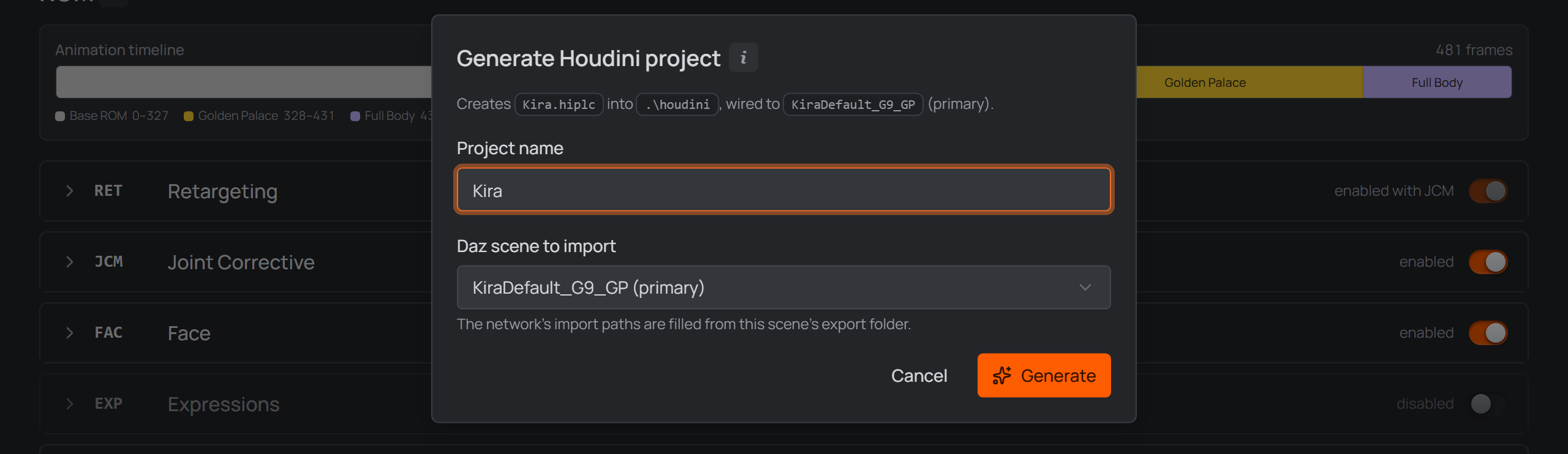
Generate project: one name, prefilled — the studio builds the scene, Set Project and the DazToHue network.
- The new scene's timeline is set to 30 fps, the rate the ROM is built at — one pose per frame. Houdini's default is 24, which would put every imported ROM frame between two of the scene's own.
- It opens with its character already loaded, on the rest pose. Generate before the Daz export has produced the files and it comes out wired but unloaded.
- The export directory is a different folder from the imports on purpose: the
imports read the
daz-exportintermediates, while Houdini writes its Unreal-bound output to the character'sexport/folder ($JOB/export/). Oneexport/per character, shared by every scene's project. - A character with several Daz scenes gets a Daz scene to import picker, on every project including the first. It starts on the primary scene, so pressing Generate straight away wires that one. Each scene exports into its own folder, so the pick decides which export set the imports point at. Generate one project per scene to cover them all.
Generate a second or third project and they land in the same houdini folder,
sharing both $JOB and $HIP — the
layout is the one shown in Build the ROM in Daz.
With more than one linked, the cards re-order by dragging: hover a card and a grip appears in its top-left corner (a project missing on disk shows it beside the filename) — drag it and the new order is saved with the character, so it holds on the DTH Export rows too. One project has nothing to re-order against and gets no grip.
Removing a generated project asks about its files: Keep houdini files on unlinks only; off deletes its scene file too. The houdini folder itself always stays, and hand-linked projects are always unlink-only.
It needs the Houdini installation folder (its bin\hython.exe builds the
scene headlessly) paired with the matching documents folder, both filled
together by activating a Houdini card in
Settings → General. The network
is created from your installed HDA at generate time, so it is always the
current plugin version; without the HDA the project still generates (empty scene,
Set Project baked).
Project checks — what the card warns about#
The studio checks a character's own Houdini projects in the background and caches the result, so nothing waits on Houdini. Projects linked from outside the character folder are left alone. While a project is being read, the card's orange left bar animates; a still bar means "answered from the cache", not "not checked yet".
A project that needs attention gets a Needs attention marker, with the reason
in the tooltip: a $JOB pointing at another character's folder, a timeline that
isn't the ROM's 30 fps, import paths that don't resolve, references still anchored
on $HIP, a DazToHue parameter still blank, or baker textures that are missing.
All but the last are repaired from the Utils drawer's General tab, which explains each check and its fix — and is what makes copying a project workable. The missing texture has no repair button: putting the file back is a reinstall, outside the app.
Note
Nothing else in the scene is verified — a clean card is not a promise that every path in it resolves. A project the studio has never managed to read a value from is reported as could not be read, never as wrong.
$DAZ3D_LIB — your Daz library, as a variable#
With both My DAZ 3D Library and the Houdini documents folder set in
Settings, the studio maintains a DAZ3D_LIB variable in each configured Houdini
version's houdini.env. Reference any library file as $DAZ3D_LIB/… instead of
hardcoding machine paths — together with the $HIP-anchored imports, the whole
project stays moveable. It updates when the library path changes in Settings, and
Tools → Refresh assets (re)wires it too. Restart Houdini to pick up changes.
Note
Always point the PoseAsset import at the CSV in the scene subfolder you exported — every delivered CSV is scene-suffixed. (A scene whose per-scene ROM overrides change the frame layout additionally has its own source CSV — see What Save generates.)
That's the whole trick: the CSV comes from the same definition as the Daz script you just ran, so every frame Houdini expects is exactly where Daz put it. Change the character later, Save, re-run, re-export — both sides move together.
Send to Unreal#
Sending happens in one place: the DTH Export panel's Unreal projects section, so a full Daz → Houdini → Unreal run is one Start. To send an export you already have, pick Skip Daz — use last exports and Skip Houdini — use last exports: then the whole run is the send.
What it sends is what the run makes — the export sets the Houdini projects
write, or (under Skip Houdini) the ones already in the character's export/
folder. Ticking the Unreal project is the whole decision; the run's task list names
each set it re-imports, one row per import job.
Install the Runner first. The DTH Character Studio Runner for Unreal
(Plugins\DTHCharacterStudioRunner, pure Python) is an ordinary item in the
project card's
Utils → Install, ticked for you
alongside DTH content while the project doesn't have it. Every Install rewrites
it, so a re-install is how you refresh it; the card shows an amber ⚠ when its copy
is older than the one this app ships — a send is then refused rather than
attempted, and the drawer re-ticks the row so the fix is one press.
Note
Restart the editor once after installing it. Unreal loads plugins at startup, so a Runner installed into an open project does nothing until that editor restarts. The panel says "Waiting for the editor to pick it up…" until something claims the job — normal while Unreal starts, and the sign of a missed restart when the project is already open.
The studio does not start Unreal to run an import. The job is queued and the
Runner picks it up within about a second; an editor you open later claims it on
startup. If the job is still unclaimed after five seconds, the studio checks what
the running editors have open: with no editor at all — or only other projects
open — it opens the .uproject for you, beside them. It never opens a project
blind: when an editor is running whose project it can't identify, the job stays
queued and the status line says whose move it is — and the DTH Export panel warns
about that state up front, before the run starts. While the Runner works, Unreal
shows its own progress dialog — the import holds the editor's main thread for
minutes.
A send is always a re-import. The studio looks through the project's
Content/ for assets belonging to each export set — all named <PREFIX>_<set>,
so it finds them wherever you moved them — and imports there, on top of what
is present. Move your character to Content/Characters/Lara and that is where the
next send lands.
- A set the project has never held is dropped from the job and named in the report: a character's first import is made in Unreal itself, which is where you decide where it lives.
- Renamed assets read as "not here", so that set is skipped and named.
A re-import runs Unreal's own Reimport — the same action as right-click → Reimport — so the meshes and their morph targets come back from the FBX the export just wrote. It does not re-run the DazToHue import pipeline, so materials, curves and the anim blueprint stay as that character's first import built them.
For the Unreal side itself, continue with the DazToHue documentation.
That's it — first character, first ROM, both sides in sync. From the second character on, the loop is just: Add character → Fill from character → adjust morphs → Save → run the script.